PUBG Mobile is a squad game. The problem is your squad does not always sit on the same couch. Sometimes you are in the same room and want both PUBG perspectives on the TV. Sometimes your duo partner is three time zones away and you still want to see their angles in real time.
GCast handles both. You spin up a Party room, share a code, and two PUBG Mobile phones land side by side on one screen. Same flow whether you are next to each other or across the country. New to GCast? Read what GCast is and how it works for the quick rundown, then come back here.
Why Watch a Squad Mate’s Screen Matters in PUBG
PUBG callouts work, but watching is faster. When you can actually see your duo’s half of the screen, a few things change.
- Rotations get tighter. You see what they see when they peek a compound, so you stop the moment they push.
- Flanks die earlier. A flicker in the corner of their feed becomes a real spot before it becomes a kill.
- Looting is cleaner. No more “did you grab the 4x” because you watched them grab it.
- Clutches feel like a team sport. When your partner is the last one alive, you are watching the 1v3 unfold, not just hoping.
It does not replace voice comms. It makes them sharper.
PUBG Split Screen Options Compared
Before GCast, getting two PUBG Mobile views on one screen meant a PC emulator setup or wishful thinking. Here is how the options stack up.
| Option | Split screen | Cross platform | Works over internet | Input lag | Setup time | Cost |
|---|---|---|---|---|---|---|
| GCast Party | Yes | iOS + Android | Yes | 16ms | Under 1 min | Free |
| PC emulators (Gameloop, BlueStacks) | No | PC only | Limited | 30-80ms+ | 30+ min | Free, needs PC |
| Cloud gaming streams | No | Any platform | Yes | 30-100ms+ | Varies | $10-20/mo |
| AirPlay | No | iOS only | No (local only) | 30ms | Under 1 min | Needs Apple TV |
| Chromecast | No | Android-focused | No (local only) | 50ms+ | Under 1 min | Needs Chromecast |
The takeaway: if you want true PUBG Mobile split screen on a TV with both phones running the real mobile build, casting two phones via GCast is the only path that does not move you off your phone or out of the mobile matchmaking pool.
How to Set Up PUBG Split Screen With GCast
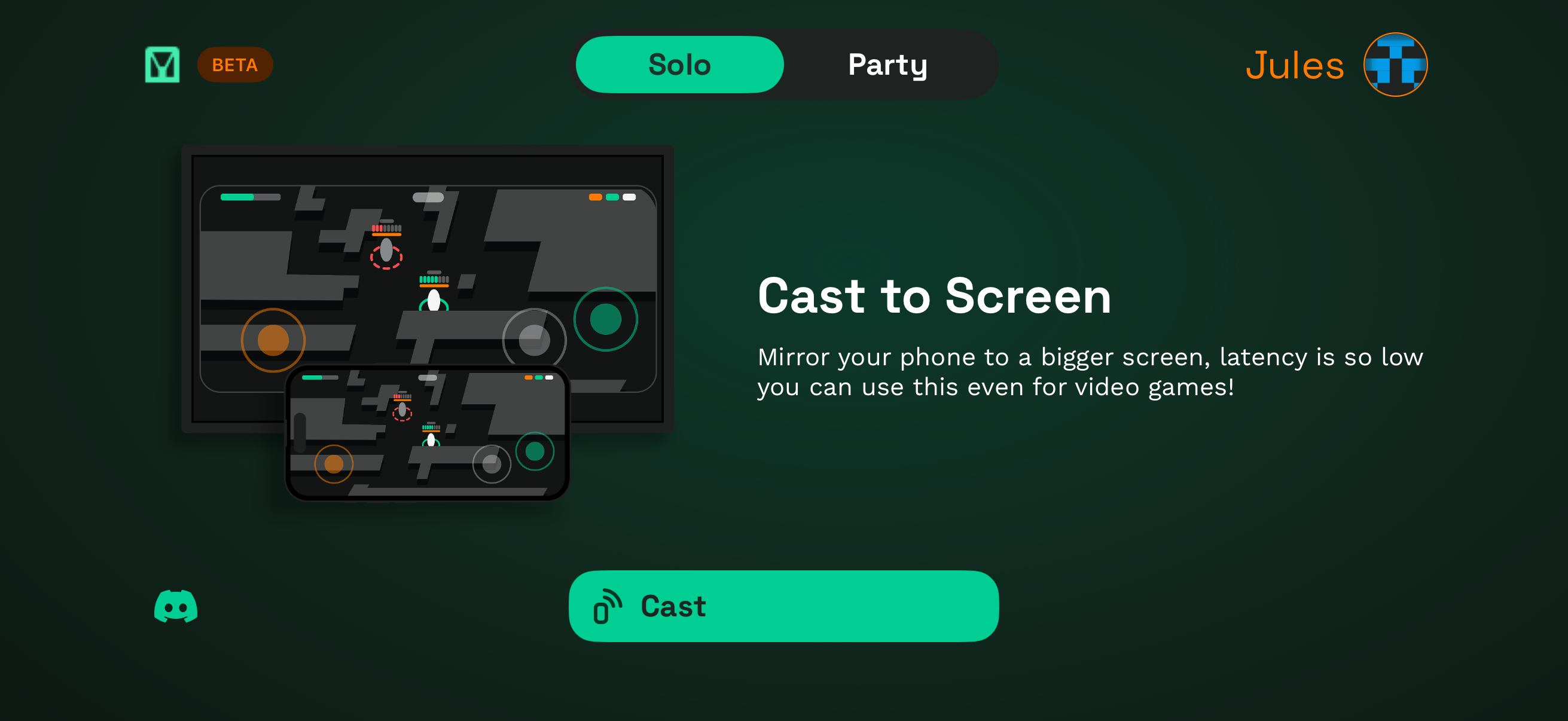
Step 1: Open GCast and switch to Party mode
Open GCast and tap the Party tab. Solo mode mirrors a single phone. Party mode creates a shared room where multiple players cast together.
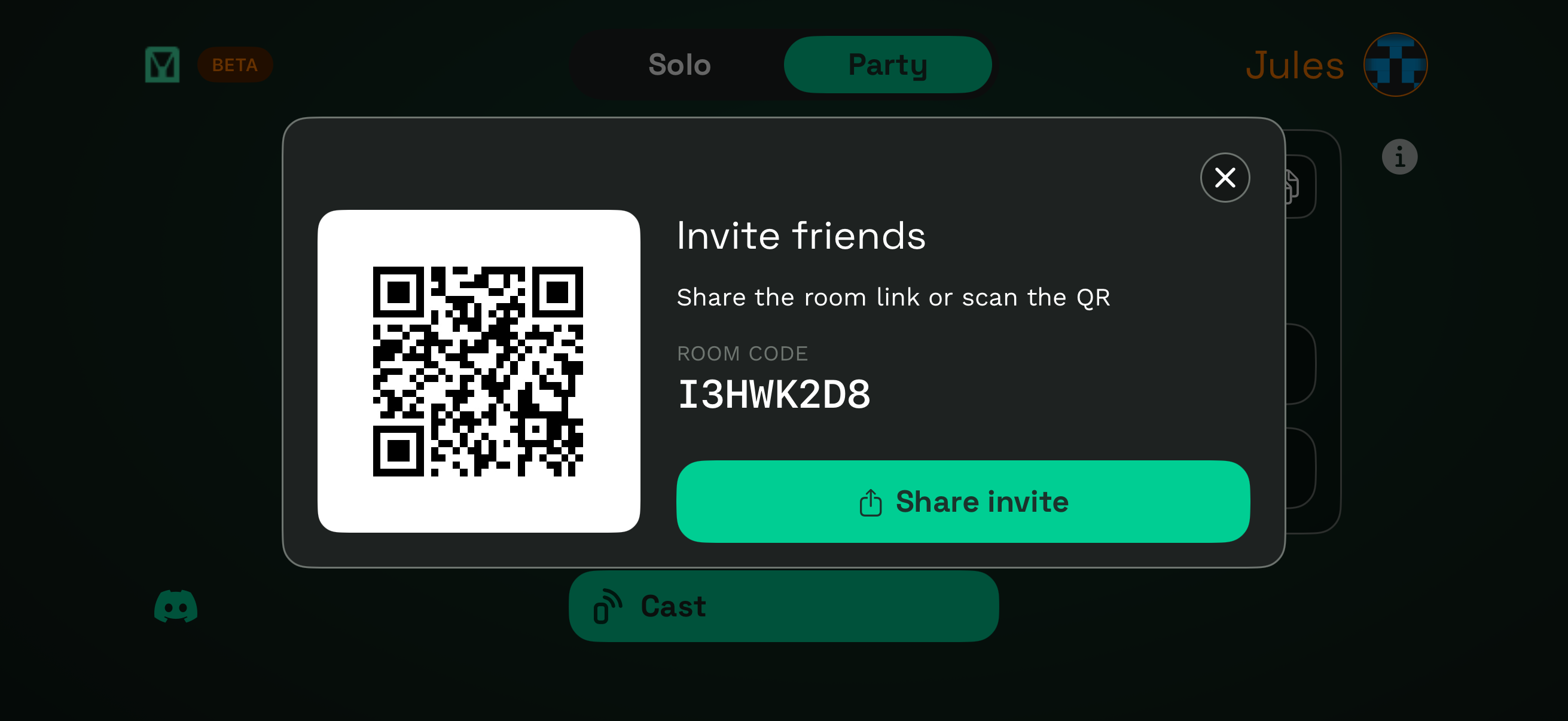
Step 2: Share the room code
GCast generates a unique room code (like I3HWK2D8) the moment you switch to Party. Tap Invite friends to share the link, copy the code, or send a QR. Drop it in your squad chat.
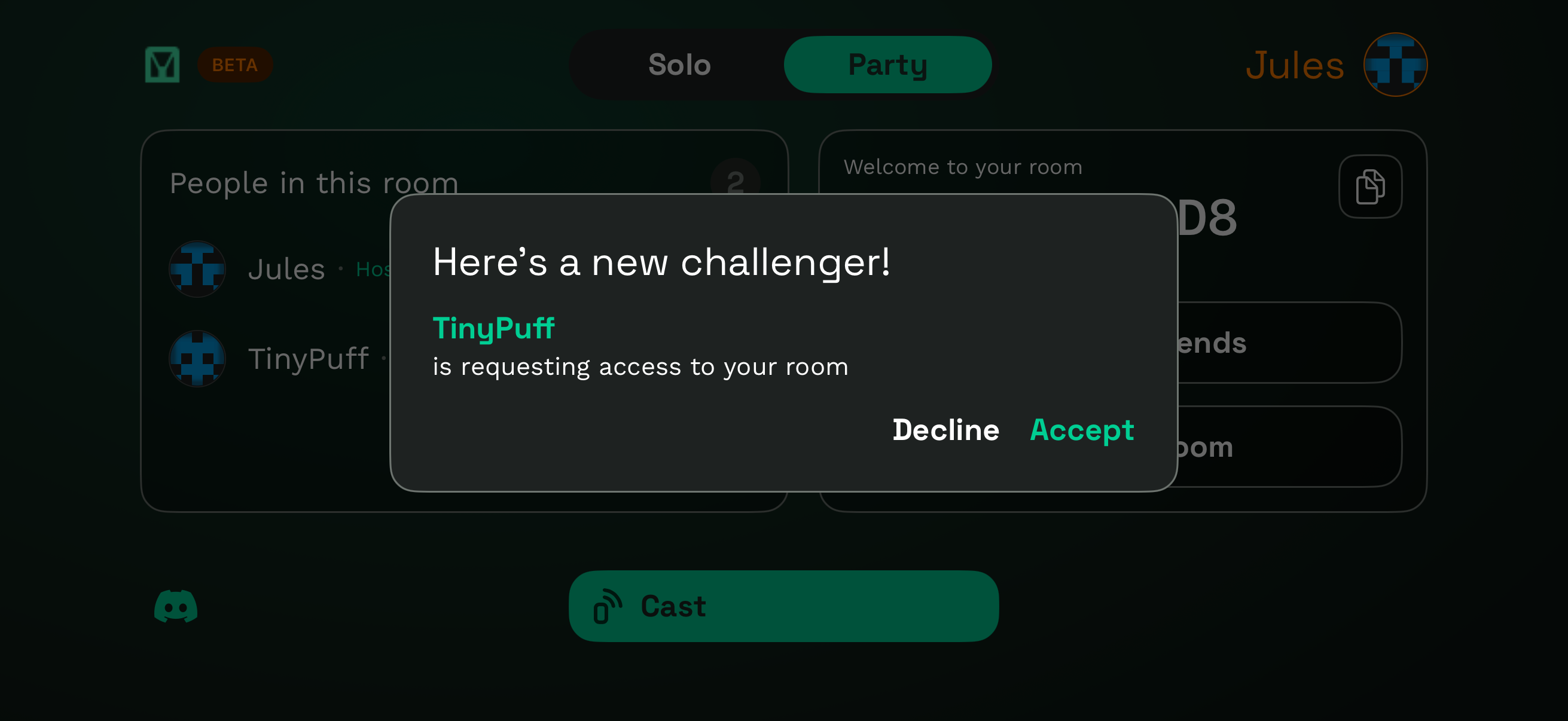
Step 3: Accept your squad mate
When your duo opens the link, you get a “Here’s a new challenger!” prompt with their name. Tap Accept and they join the room.
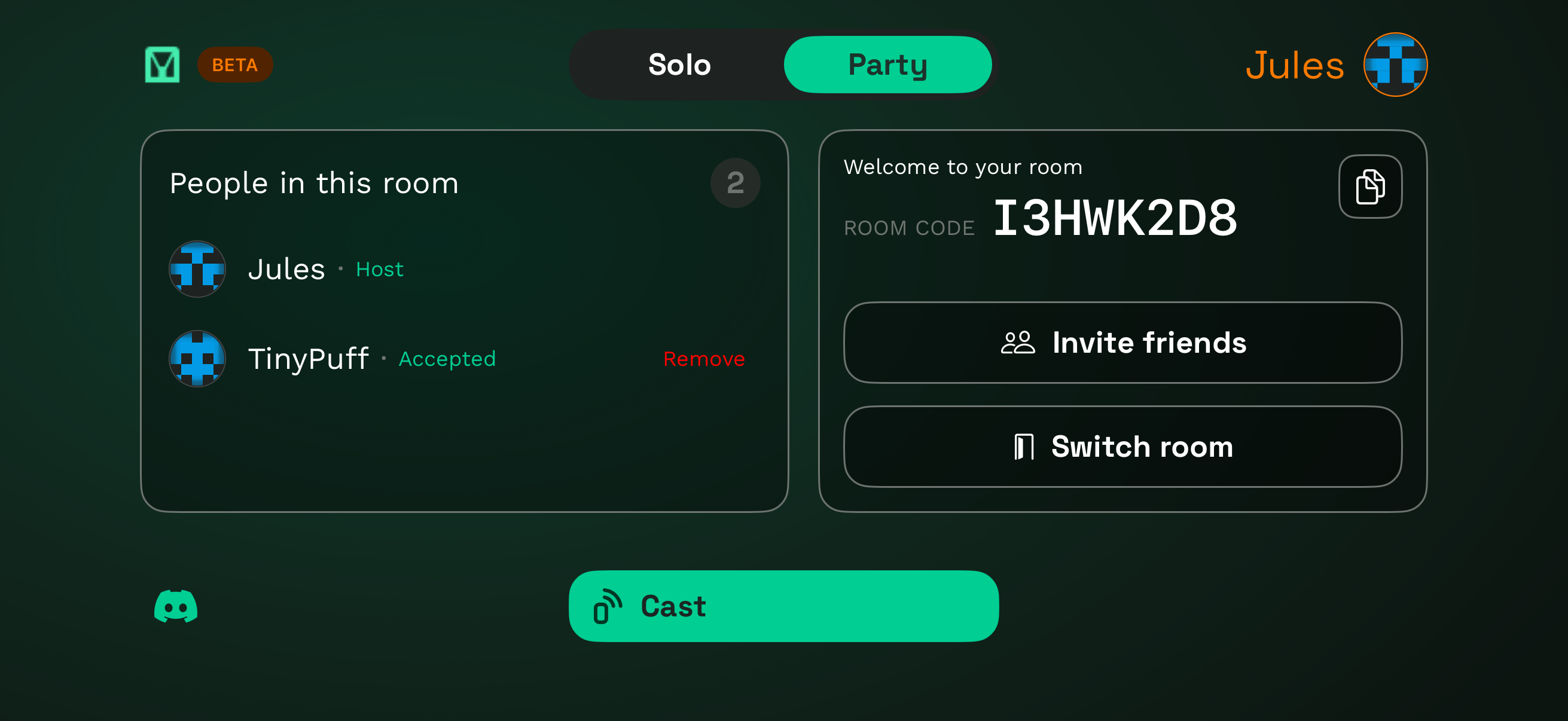
Step 4: Cast and load into PUBG
Once your squad is in, tap Cast. Both phones land on the big screen side by side. Open PUBG Mobile on each phone, queue up as a duo or squad, and drop in.
PUBG Mobile Tips for Split Screen Play
- Pair a gamepad on each phone. PUBG Mobile supports controllers on most devices, so playing PUBG Mobile with a controller on TV feels closer to a console setup. Each player pairs their own.
- Use Discord or FaceTime alongside it. GCast handles the picture, voice still goes through your usual squad call.
- Run 5GHz WiFi if you can. Two phones casting PUBG Mobile to TV at once is smoother on 5GHz, especially during firefights and the final circles.
- Drop hot for the chaos, drop cold for the angles. Split screen is more fun when you can actually see what you are doing on both halves, whether that is Erangel, Miramar, or Sanhok.
- Mirror sensitivity settings between phones. Otherwise one of you will feel slow when you trade phones.
- Both TPP and FPP work the same way. GCast does not care which mode you queue, it mirrors whatever is on your phone screen.
PUBG Mobile Couch Co-op: Same Room, Same Setup
You and your duo in the same room? Use the exact same flow. Two phones, one TV, one room code. It feels like console couch co-op for a game that never had it. If you want the local-only walkthrough, see our guide to local split screen with GCast.
Want More Than Two Players? Use Party Mode
GCast Party mode is not limited to PUBG duos. Bring in a third or fourth squad mate and they show up on the same screen. Our guide to playing split screen online with friends walks through the full Party flow, including how to handle bigger rooms.
Will PUBG Ban Me for Using GCast?
No. GCast does not touch the game. It does not inject inputs, run on an emulator, or modify anything inside PUBG Mobile. Your phone runs the game the way it always does. GCast just mirrors what is already on your screen to another display, the same way AirPlay or Chromecast would. Anti-cheat is not looking at screen mirroring.
This also means you stay in the mobile matchmaking pool. PUBG Mobile’s anti-cheat flags emulator users and queues them against other emulator users, which is why a lot of squads get split up when one person plays on PC. Casting your phone to a TV does not change which pool you queue in.
Ready to Squad Up?
Open GCast, switch to Party mode, send the room code to your duo. Whether you want to play PUBG Mobile on TV from the same couch, run a PUBG split screen session with a friend across the country, or hand a controller to your sibling for a quick duo, you will be set up in under a minute.